| Set your temperature schedule
|
|
| Creating a schedule around your day helps you enjoy maximum comfort and save money and energy, automatically.
|
|
| Easy steps to comfort and control
|
| |
 FPO FPO |
† |
|
| 1. |
Choose your calendar |
| |
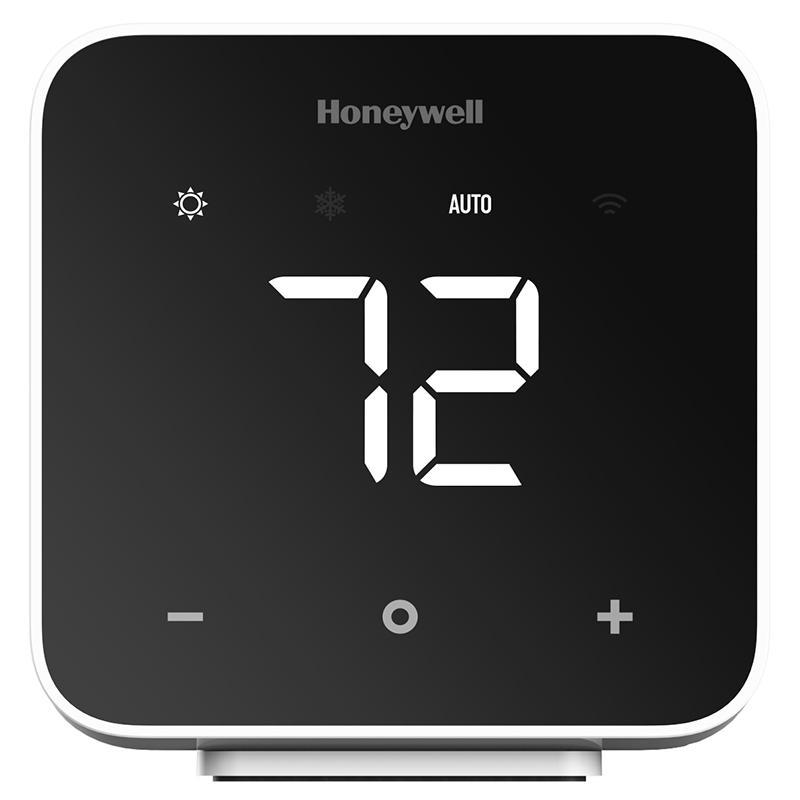
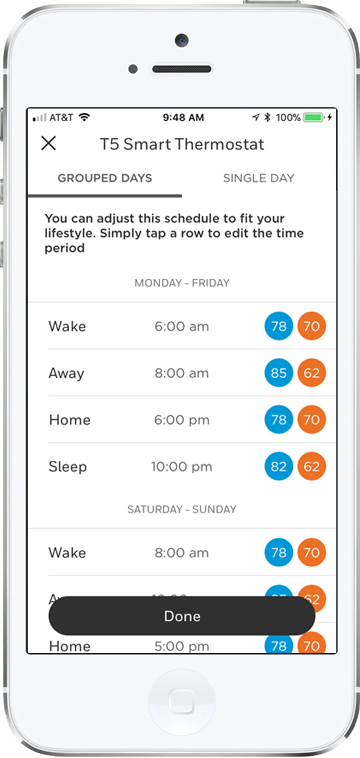
On the My Home screen in the app select your D6 Pro Controller, then select the calendar icon and choose a weekly or weekend/weekday schedule |
| 2. |
Create a schedule |
| |
Select your temperatures and times—and don't forget the person who wakes up earliest or goes to bed last |
|
|
|
|
|
|
|
|
| ›
|
Help maximize comfort with multi-zone management, available through the Honeywell Home app on your smartphone or tablet. |
|
|
Set your D6 Pro Controller to know
if you're away
|
|
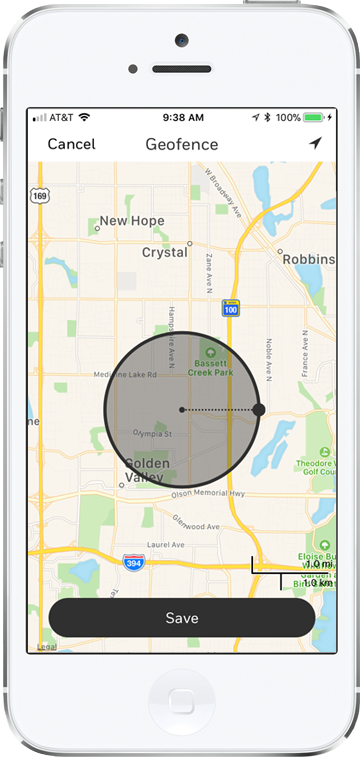
| Your D6 Pro Controller can keep you comfortable, and help to save energy and money, even on days that don't run on schedule. Just set your geofence radius in your Honeywell Home app. It will tell your D6 Pro Controller to switch off if you're away, and on when you're heading back home. |
|
| |
|
|
| 1. |
Select Geofence |
| |
Select the Geofence button from the left menu of the app
|
| 2. |
Turn Geofence on |
| |
Toggle on Geofence this Location |
| 3. |
Set Location |
| |
Return to My Home screen and select your location |
|
|
|
|
|
|
*For single zone units only.
|